

Installation der HOS Commercial Edition 1.01 mit 8 physischen Servern – Notizen
Server-Inventar
| Rolle | Serialnummer | ILO-IP | ILO-Benutzername | ILO-Passwort | IP-Adresse | CPU | Arbeitsspeicher | Festplatte |
| Seed-Host | ILOCZJ43402GV | 172.30.0.117 | Administrator | xxxx | 172.16.120.2 | 20 | 262144 | 1116 |
| Undercloud | ILOCZJ43402GW | 172.30.0.118 | Administrator | xxxx | 20 | 262144 | 1116 | |
| Overcloud MC | ILOCZJ43402H5 | 172.30.0.119 | Administrator | xxxx | 20 | 262144 | 1116 | |
| Overcloud Ctrl1 | ILOCZJ43402H0 | 172.30.0.120 | Administrator | xxxx | 20 | 262144 | 1116 | |
| Overcloud Ctrl2 | ILOCZJ43402GX | 172.30.0.121 | Administrator | xxxx | 20 | 262144 | 1116 | |
| Overcloud Swift1 | ILOCZJ43402H2 | 172.30.0.122 | Administrator | xxxx | 20 | 262144 | 1116 | |
| Overcloud Swift2 | ILOCZJ43402H3 | 172.30.0.123 | Administrator | xxxx | 20 | 262144 | 1116 | |
| Overcloud Compute | ILOCZJ43402HC | 172.30.0.124 | Administrator | xxxx | 20 | 262144 | 1116 |
Netzwerk

Netzwerke
- Management 172.16.120.0/24 VLAN 120 (Ungetaggt – Native)
- Extern (Öffentlich) 172.16.122.0/24 VLAN 122 (Getaggt)
- Service 172.16.121.0/24 VLAN 121 (Getaggt)
- IPMI (iLO) 172.30.0.0/24 (Ungetaggt – Native)
Voraussetzungen
Voraussetzung ist, dass die Server bereits im Rack eingebaut, gestapelt und an die Top-of-Rack-Switches angeschlossen sind.
Hardware
- Ist die Basis-Hardware unterstützt? Prüfen Sie dies anhand der Support-Matrix oder zukünftig möglicherweise mit dem USB Discovery Tool? (Raid-Controller usw.)
iLO
- Dies muss mit einer IP-Adresse, einem administrativen Benutzernamen und einem Passwort konfiguriert werden.
- Wenden Sie die iLO-Lizenz an, wenn erweiterte iLO-Funktionen erforderlich sind (z. B. Remote-Console-Zugriff, sobald das Betriebssystem gebootet ist).

BIOS-Einstellungen
- Setzen Sie das RTC-Datum (Real-Time Clock) und die Uhrzeit korrekt.
- Deaktivieren Sie den PXE-Boot auf allen NICs AUSSER der physischen Management-NIC (iLO ist ebenfalls erforderlich).
- Aktivieren Sie die CPU-Virtualisierungstechnologie.
- Legen Sie den automatischen Neustart auf „Aus“ fest.

Raid-Controller
- Konfigurieren Sie das lokale Speicher-Array so, dass es eine einzelne Raid 1/0-Festplatte bereitstellt.
[ Anpassen nach Belieben – OpenStack empfiehlt den Verzicht auf Raid-Controller, um Kosten und Komplexität zu reduzieren. Unternehmen bevorzugen jedoch tendenziell Redundanz, um zu vermeiden, dass alltägliche Ausfälle die Produktion beeinträchtigen. ]

Beginn des Installationsprozesses
- Melden Sie sich am iLO des Seed-Hosts an und mounten Sie das Ubuntu 14.04 Server ISO-Abbild.

- Installieren Sie Ubuntu Server.

[Hinweis: Spezifische Einstellungen der lokalen Lab-Umgebung, Proxy für das Ubuntu-Paket-Repository]
- Ändern oder erstellen Sie die folgende Konfigurationsdatei und fügen Sie die Proxy-Details hinzu – /etc/apt/apt.conf
- Acquire::http::Proxy „http://XX.XXX.133.239:3128“;
- Speichern
- Repository-Inhalte aktualisieren
-
sudo apt-get update
- Konfigurieren Sie DNS über die entsprechende Schnittstelle in /etc/network/interfaces
z. B.
Die primäre Netzwerkschnittstelle
auto em1
iface em1 inet static
address 172.16.120.2
netmask 255.255.255.0
network 172.16.120.0
broadcast 172.16.120.255
gateway 172.16.120.1
# dns-* Optionen werden vom resolvconf-Paket implementiert, falls installiert
dns-nameservers 172.16.120.1
- Konfigurieren Sie SSH [während der Basisinstallation bereits installiert]
- Holen Sie sich den öffentlichen Schlüssel
-
ssh-keygen -t rsa -N „“
helion@headnode03r03:~$ sudo su –
[sudo] password for helion:
root@headnode03r03:~# ssh-keygen -t rsa -N „“
Generating public/private rsa key pair.
Enter file in which to save the key (/root/.ssh/id_rsa):
Created directory ‘/root/.ssh’.
Your identification has been saved in /root/.ssh/id_rsa.
Your public key has been saved in /root/.ssh/id_rsa.pub.
The key fingerprint is:
20:51:98:0d:48:ab:b8:fa:ca:3b:a3:25:03:ff:31:2b root@headnode03r03
The key’s randomart image is:
+–[ RSA 2048]—-+
| …o*. |
| ..o.. |
| . . . |
|.. . . |
|+ S |
|.o |
|+ o o |
|o*E. + |
|===.o |
+—————–+
root@headnode03r03:~#
-
Installieren Sie die erforderlichen Pakete, wie hier dokumentiert
-
sudo apt–get install –y xrdp xfce4 libvirt–bin openvswitch–switch openvswitch–common python–libvirt qemu–kvm libssl–dev libffi–dev virt–manager chromium–browser
-
Starten Sie libvirt neu
-
sudo /etc/init.d/libvirt–bin restart
-
Installieren und konfigurieren Sie den NTP-Server
- sudo apt-get install ntp
- Für PoC-Szenarien oder wenn kein Zugriff auf externe NTP-Server besteht, verwenden Sie diesen Seed-Host als NTP-Server, indem Sie die /etc/ntp.conf mit den folgenden Details ändern
Geben Sie einen oder mehrere NTP-Server an.
Verwenden Sie Server aus dem NTP Pool Project. Genehmigt vom Ubuntu Technical Board
am 2011-02-08 (LP: #104525). Siehe http://www.pool.ntp.org/join.html für
Weitere Informationen.
server 127.127.1.0
fudge 127.127.1.0 stratum 10
- service ntp restart

- Kopieren Sie die HOS-Binärdateien und die Installations-Tools vom HTTP-Server im Labor.
- root@headnode03r03:~# mkdir work
- root@headnode03r03:~# cd work
- root@headnode03r03:~/work# wget http://172.16.1.5/files/helion/enterprise/HP_Helion_OpenStack_1.0.1.tgz
–2015-01-09 14:52:32– http://172.16.1.5/files/helion/enterprise/HP_Helion_OpenStack_1.0.1.tgz
Connecting to 172.16.1.5:80… connected.
HTTP request sent, awaiting response… 200 OK
Length: 7440363802 (6.9G) [application/octet-stream]
Saving to: ‘HP_Helion_OpenStack_1.0.1.tgz’
100%[====================================>] 7,440,363,802 276MB/s in 26s
2015-01-09 14:52:58 (277 MB/s) – ‘HP_Helion_OpenStack_1.0.1.tgz’ saved [7440363802/7440363802]
- Überprüfen Sie das Installationsmedium
- root@headnode03r03:~/work# md5sum HP_Helion_OpenStack_1.0.1.tgz
b341aac3ff2f4c583f3ca22e6a2f1e1a HP_Helion_OpenStack_1.0.1.tgz
- Laden Sie alle Support-Dateien aus dem Tool-Verzeichnis im Labor herunter [bei großen Installationen sparen diese Tools viel Zeit bei der Informationsbeschaffung von den iLOs]
- root@headnode03r03:~/work# wget -r -nd -nH –no-parent –reject “index.html*” http://172.16.1.5/files/helion/tools/
–2015-01-09 15:07:06– http://172.16.1.5/files/helion/tools/
Connecting to 172.16.1.5:80… connected.
HTTP request sent, awaiting response… 200 OK
Length: unspecified [text/html]
Saving to: ‘index.html’
[ <=> ] 414 –.-K/s in 0s
2015-01-09 15:07:06 (19.8 MB/s) – ‘index.html’ saved [414]
Loading robots.txt; please ignore errors.
–2015-01-09 15:07:06– http://172.16.1.5/robots.txt
Reusing existing connection to 172.16.1.5:80.
HTTP request sent, awaiting response… 404 Not Found
2015-01-09 15:07:06 ERROR 404: Not Found.
Removing index.html since it should be rejected.
–2015-01-09 15:07:06– http://172.16.1.5/files/helion/tools/Create-Baremetal.py
Reusing existing connection to 172.16.1.5:80.
HTTP request sent, awaiting response… 200 OK
Length: 4829 (4.7K) [application/octet-stream]
Saving to: ‘Create-Baremetal.py’
100%[======================================>] 4,829 –.-K/s in 0s
2015-01-09 15:07:06 (280 MB/s) – ‘Create-Baremetal.py’ saved [4829/4829]
–2015-01-09 15:07:06– http://172.16.1.5/files/helion/tools/python-hpilo-2.8.tar
Reusing existing connection to 172.16.1.5:80.
HTTP request sent, awaiting response… 200 OK
Length: 204800 (200K) [application/octet-stream]
Saving to: ‘python-hpilo-2.8.tar’
100%[======================================>] 204,800 –.-K/s in 0.001s
2015-01-09 15:07:06 (207 MB/s) – ‘python-hpilo-2.8.tar’ saved [204800/204800]
FINISHED –2015-01-09 15:07:06–
Total wall clock time: 0.006s
Downloaded: 3 files, 205K in 0.001s (205 MB/s)
root@headnode03r03:~/work# ls
Create-Baremetal.py HP_Helion_OpenStack_1.0.1.tgz python-hpilo-2.8.tar
- Installieren Sie die Python HP iLO-Bibliotheken
- root@headnode03r03:~/work# tar -xvf python-hpilo-2.8.tar
- root@headnode03r03:~/work# cd python-hpilo-2.8/
- root@headnode03r03:~/work/python-hpilo-2.8# python3 setup.py install
- Entpacken Sie die HOS-Binärdateien
- root@headnode03r03:~/work# tar zxvf /root/work/HP_Helion_OpenStack_1.0.1.tgz
[Update-Hinweis: Ich musste alles zurück in das Root-Verzeichnis kopieren, da es Probleme mit dem Installationsskript gab, als ich die Dateien im Verzeichnis „work“ platziert hatte]
- Sichern und ändern Sie dann die Standard-Datei für die Umgebungsvariablen der Installation /root/work/tripleo/config/kvm-custom-ips.json
- root@headnode03r03:~/work# vi /root/work/tripleo/configs/kvm-custom-ips.json
-
root@headnode03r03:~/work# cat /root/work/tripleo/configs/kvm-custom-ips.json
{
„cloud_type“: „KVM“,
„vsa_scale“: 0,
„vsa_ao_scale“: 0,
„so_swift_storage_scale“: 0,
„so_swift_proxy_scale“: 0,
„compute_scale“: 1,
„bridge_interface“: „em1“,
„virtual_interface“: „eth0“,
„fixed_range_cidr“: „172.0.100.0/24“,
„control_virtual_router_id“: „71“,
„baremetal“: {
„network_seed_ip“: „172.16.120.3“,
„network_cidr“: „172.16.120.0/24“,
„network_gateway“: „172.16.120.1“,
„network_seed_range_start“: „172.16.120.4“,
„network_seed_range_end“: „172.16.120.14“,
„network_undercloud_range_start“: „172.16.120.20“,
„network_undercloud_range_end“: „172.16.120.40“
},
„neutron“: {
„public_interface_raw_device“: „eth0“,
„overcloud_public_interface“: „vlan122“,
„undercloud_public_interface“: „eth0“
},
„ntp“: {
„overcloud_server“: „172.16.120.2“,
„undercloud_server“: „172.16.120.2“
},
„floating_ip“: {
„start“: „172.16.122.100“,
„end“: „172.16.122.150“,
„cidr“: „172.16.122.0/24“
},
„svc“: {
„interface“: „vlan121“,
„interface_default_route“: „172.16.121.1“,
„allocate_start“: „172.16.121.100“,
„allocate_end“: „172.16.121.200“,
„allocate_cidr“: „172.16.121.0/24“,
„overcloud_bridge_mappings“: „svcnet1:br-svc“,
„overcloud_flat_networks“: „svcnet1“,
„customer_router_ip“: „172.16.121.1“
},
„codn“: {
„undercloud_http_proxy“: „http://16.209.133.239:3128”,
„undercloud_https_proxy“: „http://16.209.133.239:3128”,
„overcloud_http_proxy“: „http://16.209.133.239:3128”,
„overcloud_https_proxy“: „http://16.209.133.239:3128”
}
}
-
Erstellen Sie nun die Datei baremetal.csv mit den zuvor heruntergeladenen Tools. [Hinweis: Schließen Sie den Seed-Host nicht in diese Datei ein.]
- Die Datei Create-Baremetal.py erfordert eine CSV-Datei mit den iLO-Details
- root@headnode03r03:~/work/python-hpilo-2.8# cd ..
- root@headnode03r03:~/work# python3 Create-Baremetal.py
usage: Create-Baremetal.py [-h] [-f FILE]
Create-Baremetal.py: error: argument -f/–file: can’t open ‘Helion-iLO.csv’: [Errno 2] No such file or directory: ‘Helion-iLO.csv’
- Erstellen Sie die CSV-Datei im folgenden Format
help=’CSV with iLO IP, username, password’, default=’Helion-iLO.csv’
-
Beispiel:
root@headnode03r03:~/work# vi Helion-iLO.csv
root@headnode03r03:~/work# cat Helion-iLO.csv
172.30.0.117,Administrator,xxxx [Hinweis: Seed-Host entfernen]
172.30.0.118,Administrator,xxxx
172.30.0.119,Administrator,xxxx
172.30.0.120,Administrator,xxxx
172.30.0.121,Administrator,xxxx
172.30.0.122,Administrator,xxxx
172.30.0.123,Administrator,xxxx
172.30.0.124,Administrator,xxxx
-
Erstellen Sie die Datei baremetal.csv
-
root@headnode03r03:~/work# python3 Create-Baremetal.py
Creating baremetal.csv in the current folder…
Gathering information for node: 172.30.0.117 PXE-Mac:9c:b6:54:9b:e4:68, 262144MB, 20 Cores, 1116GiB
Gathering information for node: 172.30.0.118 PXE-Mac:9c:b6:54:9b:94:48, 262144MB, 20 Cores, 1116GiB
Gathering information for node: 172.30.0.119 PXE-Mac:9c:b6:54:9b:b6:98, 262144MB, 20 Cores, 1116GiB
Gathering information for node: 172.30.0.120 PXE-Mac:9c:b6:54:9b:76:90, 262144MB, 20 Cores, 1116GiB
Gathering information for node: 172.30.0.121 PXE-Mac:9c:b6:54:9b:f6:78, 262144MB, 20 Cores, 1116GiB
Gathering information for node: 172.30.0.122 PXE-Mac:f0:92:1c:05:49:30, 262144MB, 20 Cores, 1116GiB
Gathering information for node: 172.30.0.123 PXE-Mac:9c:b6:54:9b:64:00, 262144MB, 20 Cores, 1116GiB
Gathering information for node: 172.30.0.124 PXE-Mac:9c:b6:54:9b:d6:78, 262144MB, 20 Cores, 1116GiB
root@headnode03r03:~/work# cat baremetal.csv
9c:b6:54:9b:94:48,Administrator,xxxx,172.30.0.118,20,262144,1116
9c:b6:54:9b:b6:98,Administrator,xxxx,172.30.0.119,20,262144,1116
9c:b6:54:9b:76:90,Administrator,xxxx,172.30.0.120,20,262144,1116
9c:b6:54:9b:f6:78,Administrator,xxxx,172.30.0.121,20,262144,1116
f0:92:1c:05:49:30,Administrator,xxxx,172.30.0.122,20,262144,1116
9c:b6:54:9b:64:00,Administrator,xxxx,172.30.0.123,20,262144,1116
9c:b6:54:9b:d6:78,Administrator,xxxx,172.30.0.124,20,262144,1116
-
Konfigurieren Sie den HTTP-Proxy auf dem Seed-Host
- root@headnode03r03:~/work# export http_proxy=http://16.209.133.239:3128
- root@headnode03r03:~/work# export https_proxy=http://16.209.133.239:3128
- root@headnode03r03:~/work# export no_proxy=localhost,127.0.0.1,172.12.120.2
- Führen Sie kvm-custom-ips aus
- root@headnode03r03:~# bash
- root@headnode03r03:~# source tripleo/tripleo-incubator/scripts/hp_ced_load_confi g.sh tripleo/configs/kvm-custom-ips.json
The configuration specified by tripleo/configs/kvm-custom-ips.json is loaded and ready for installation
- Erstellen Sie die Seed-VM
- root@headnode03r03:~# bash -x /root/tripleo/tripleo-incubator/scripts/hp_ced_host_manager.sh –create-seed |& tee seedinstall.log
Seed abgeschlossen – nun für Undercloud und Overcloud
- Kopieren Sie die zuvor erstellte baremetal.csv in die neu erstellte Seed-VM
-
scp baremetal.csv root@172.16.120.3:/root
-
Melden Sie sich an der neu erstellten Seed-VM an
-
ssh root@172.16.120.3
-
Überprüfen Sie, ob sowohl die baremetal-Datei als auch die kvm-custom-ips.json korrekt sind
- Führen Sie die Datei kvm-custom-ips.json aus
-
source tripleo/tripleo-incubator/scripts/hp_ced_load_config.sh tripleo/configs/kvm-custom-ips.json
-
Installieren Sie das Undercloud und das Overcloud
- bash -x /root/tripleo/tripleo-incubator/scripts/hp_ced_installer.sh |& tee cloud_install.log
- Und das sollte Ihnen Folgendes ergeben –
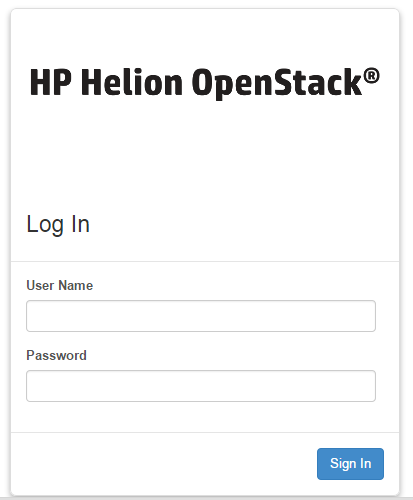
Demnächst erscheinender Artikel zur Verifizierung der Installation
Fehler
Problem :
=======
root@headnode03r03:~# source /root/work/tripleo/tripleo-incubator/scripts/hp_ced_load_config.sh /root/work/tripleo/configs/kvm-custom-ips.json
Error: Script has no access to write variables to environment.
You must run this using one of the following forms:
source hp_ced_load_config.sh <config.json>
or
. hp_ced_load_config.sh <config.json>
Solved : Ensure you’re in a bash shell - run bash and then run the command
=======================================================
Problem :
=======
root@headnode03r03:~# source /root/work/tripleo/tripleo-incubator/scripts/hp_ced_load_config.sh /root/work/tripleo/configs/kvm-custom-ips.json
Error: [Errno 2] No such file or directory: '/root/tripleo/hp_passthrough/overcloud_pre_installer.json'
Solved : Ensure the media is installed in the correct installed in the /root/ directory. Early documentation requests that the media is expanded into a /root/work/ directory. This is no longer correct.
root@headnode03r03:~# mv work/tripleo/ /root/
=============================================================
Problem :
=======
+ hp_ced_validate_ip validate -a 172.16.120.3 -n 172.16.120.0/24 -p down
Valid IP address: 172.16.120.3
Address (172.16.120.3) on network (172.16.120.0/24)
ERROR: Found pingable IP, cannot continue
Pingable IP: 172.16.120.3
Solved : All servers not switched off - ensure lab is reset correctly before starting
=============================================================
Problem :
=======
+ die 'Error: BRIDGE_INTERFACE:eth0 has no assigned IP address'
+ echo Error: BRIDGE_INTERFACE:eth0 has no assigned IP address
Error: BRIDGE_INTERFACE:eth0 has no assigned IP address
+ exit 1
Solved : The seed host was not reset cleanly after first attempt - need to remove the baremetal bridge - brbm and place ip address back on em1…
Deleted brbm
Added IP back to em1
Added default gw
=====================================================================