

When integrating the HOS 2.1 keystone authentication service with LDAP it’s useful to have the linux ldap toolset installed on the Lifecycle Manager node. The ldap integration procedure is clearly explained here.
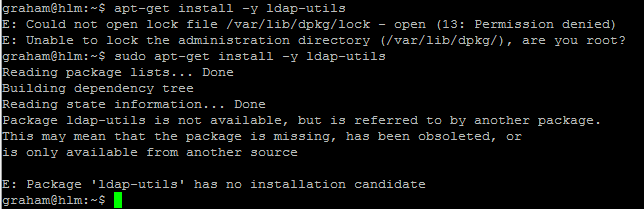
Helion OpenStack 2.1 currently ships without LDAP-UTILS in the repository supplied with the hLinux base media. However, hLinux is basically a hardened version of Debian Jessie (version 8). The following procedure illustrates how to overcome two minor hurdles in HOS 2.1:
- How to add a third party, Debian, repository for use within hLinux.
[Note: Please don’t do this on a production environment without first checking with your support team.] - How to transfer Helion OpenStack 2.1 packages to an air-gapped HOS 2.1 system i.e. systems without internet access.
Start with an Online hLinux System
- Install hLinux from the HOS 2.1 installation media onto a virtual machine with internet access.
- Run the following command to locate the correct release of Debian that hLinux is based upon. This is required to ensure we connect to the correct version of the Debian repository.
dpkg -l|grep -i hlinux
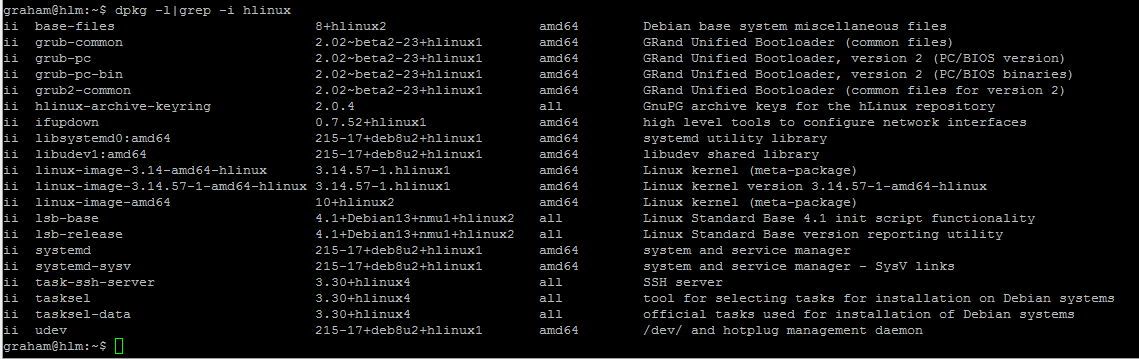
Debian 8 – Jessie https://www.debian.org/releases/
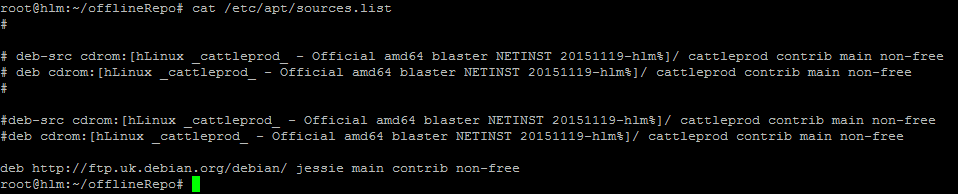
deb http://ftp.uk.debian.org/debian/ jessie main contrib non-free
- Edit the file /etc/apt/sources.list and add the line above which tells apt-get to search that repo.
- Comment out the cdrom repository lines as shown below.
sudo vi /etc/apt/sources.list
- Now update the list of sources for apt-get (it will re-read the updated sources.list file)
sudo apt-get update
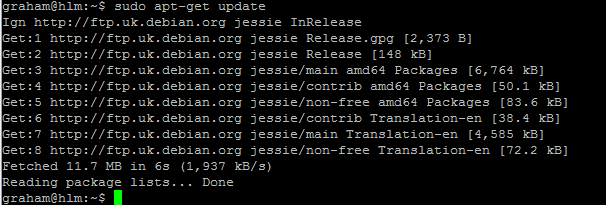
Note: If the above update fails you may not have direct internet access but instead need to enter your proxy server details as follows and then repeat the above command:
export http_proxy=http://<your proxy server details>:<port>
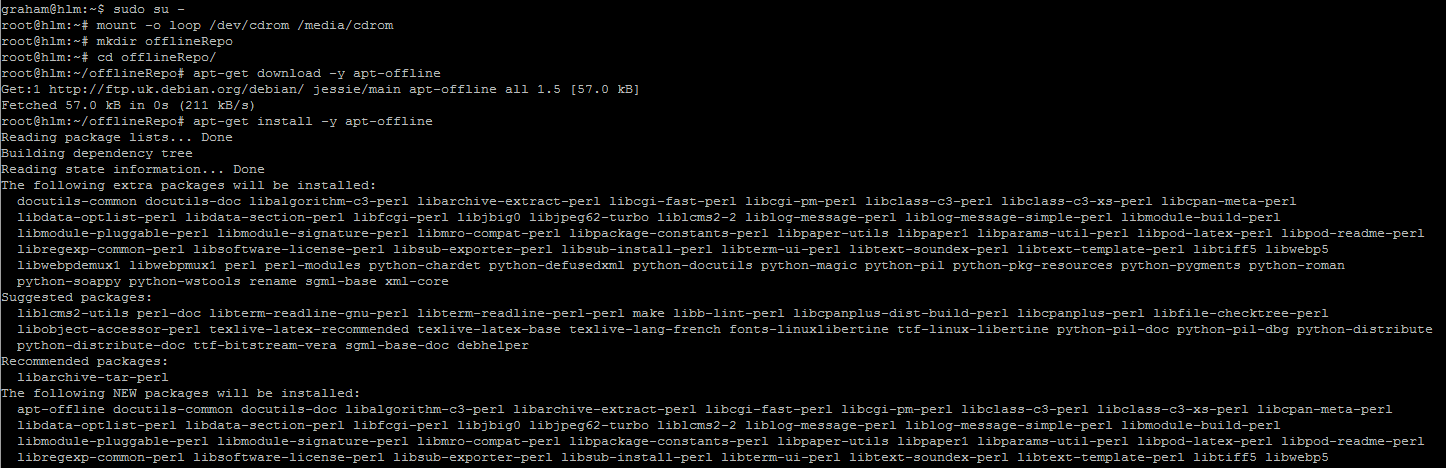
- As we need to package up the ldap-utils (or any other packages for that matter) for use on another system that does not have internet access we need to install the offline package manager : apt-offline
sudo su -

mkdir  offlineRepo

cd offlineRepo

apt-get download -y apt-offline

# Download the package itself for use on the other system

apt-get install -y apt-offline
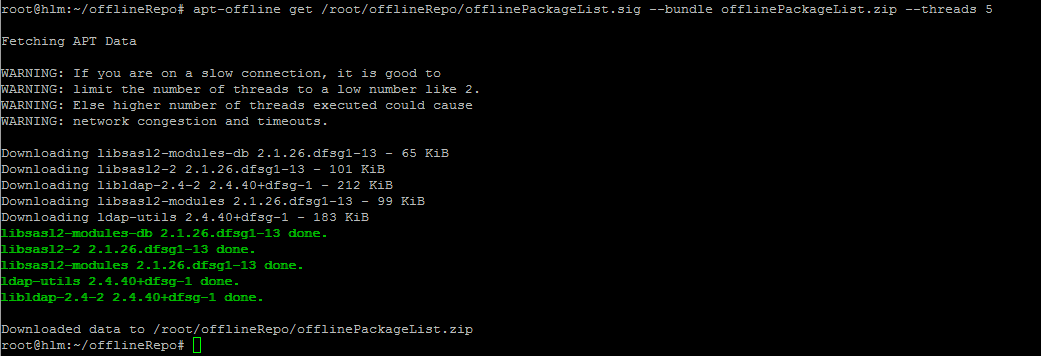
- Now build the index for the apt-offline repository and download the required packages .
Note: I’ll be downloading the ldap-utils package in this scenario, however you can include whatever packages you need. Simply append them after ldap-utils.
apt-offline set /root/offlineRepo/offlinePackageList.sig --install-packages ldap-utils [optional other packages..]

apt-offline get /root/offlineRepo/offlinePackageList.sig --bundle offlinePackageList.zip --threads 5
- Now we just need to compress everything into a single file for easy transportation to the offline HOS 2.1 system.
cd /root

tar zcvf offlineRepo.tar.gz /root/offlineRepo

Move to the Offline HOS 2.1 System
- Move the compressed tar file to the offline server using whatever means are allowed in your environment and then extract the offlineRepo.
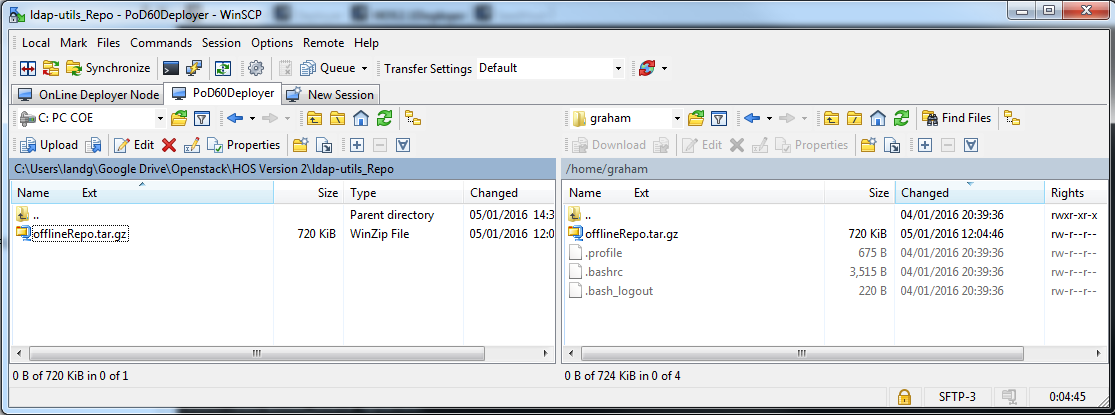
sudo su -

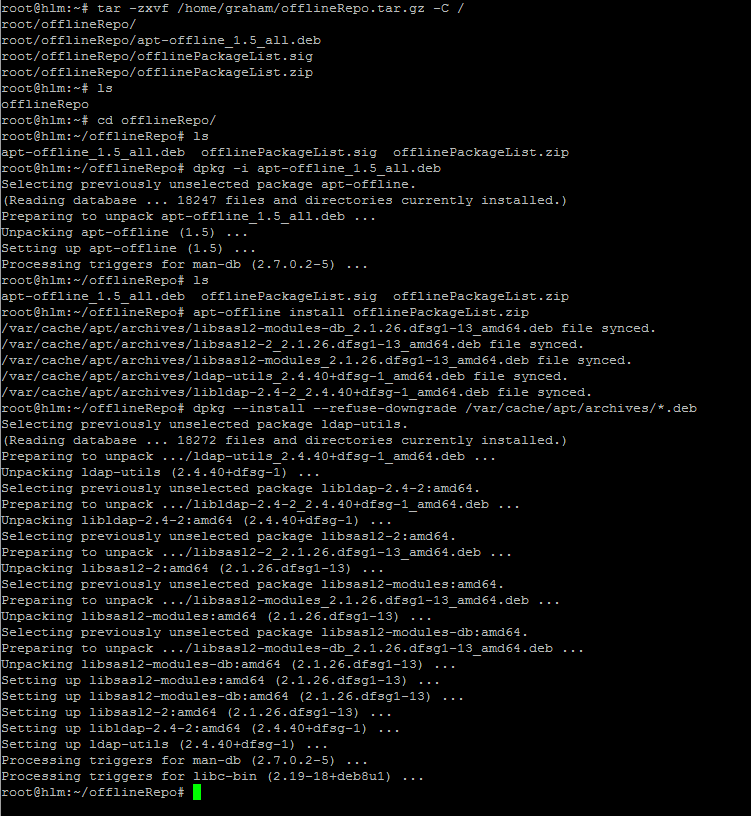
tar zxvf offlineRepo.tar.gz -C /

cd offlineRepo
- Install the offline package manager, apt-offline
ls (get the full name of the apt-offline installation package)

dpkg -i <apt-offline package name from above>

apt-offline install offlinePackageList.zip

dpkg --install --refuse-downgrade /var/cache/apt/archives/*.deb
See https://www.debian-administration.org/article/648/Offline_Package_Management_for_APT for more details on offline package management.
Verification
- Finally, to test LDAP connectivity you can now use the ldap-utils suite.
ldapsearch tool
ldapsearch -D bindName -w bindPassword -p port -h hostname -s scope -b base filter
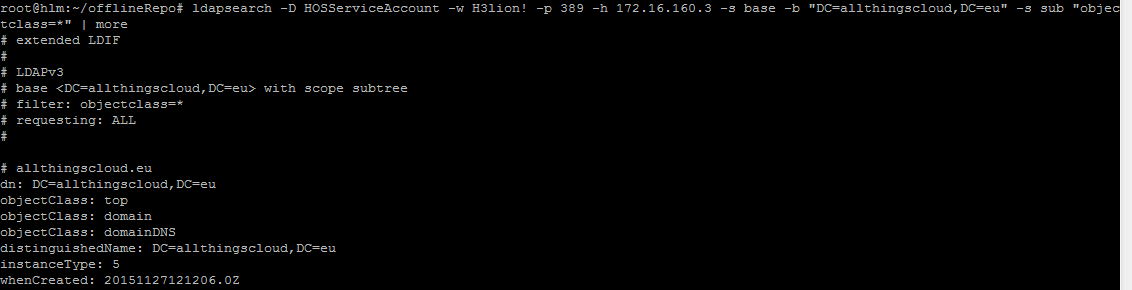
- List all LDAP objects in your directory
ldapsearch -D HOSServiceAccount -w password -p 389 -h 172.16.160.3 -s base -b "DC=allthingscloud,DC=eu" -s sub "objectclass=*"
 …
…
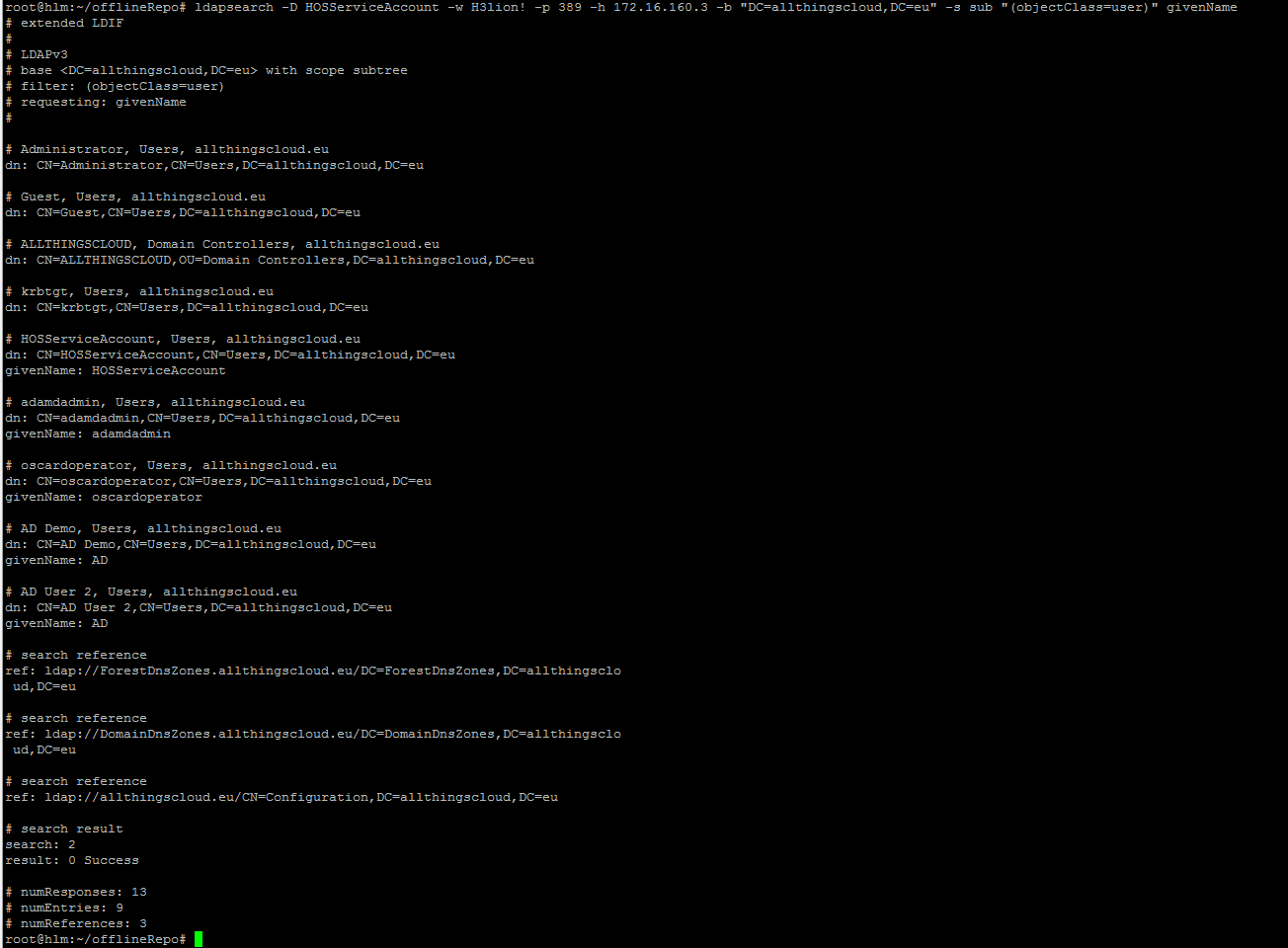
- List all LDAP Users
ldapsearch -D HOSServiceAccount -w password -p 389 -h 172.16.160.3 -b "DC=allthingscloud,DC=eu" -s sub "(objectClass=user)" givenName
If these ldap communication tests fail then it will be necessary to go back to the basics and verify that the ldap account details are correct, the network is routable to the LDAP server and the ports are not being blocked by a firewall. The netcat tool (nc) is useful in this scenario.
nc -z -v <ipaddress or hostname of ldap server> 389 636
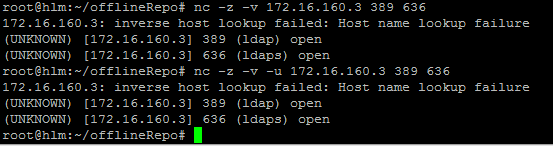
[Note: the ‘-u’ option with nc forces a UDP packet as opposed to a TCP packet]
Troubleshooting
If you see the following error when trying to install apt-offline ensure that you’ve remembered to comment out the cdrom repository from the /etc/apt/sources.list file as outline earlier in this post and re-run apt-update.
